

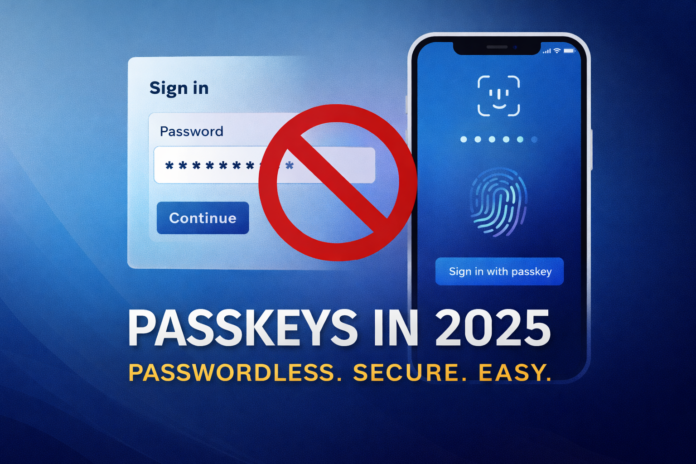
Passkeys Are Here: The Simplest Way to Protect Your Accounts in 2025
Passwords have become the internet’s weakest routine. People reuse them, forget them, store them in unsafe places, and—under pressure—type them into pages that look legitimate. Attackers build entire ecosystems around that predictable behavior. Phishing, smishing, fake login pages, and account takeovers thrive because a password is a transferable secret. Once someone obtains it, they can replay it.
Passkeys change the security model because they remove that transferable secret from the equation. (Source: FIDO Alliance overview of passkeys: https://fidoalliance.org/passkeys/)
You don’t “know” a passkey the way you know a password. You approve a sign-in with something you already use every day: device unlock (Face ID, Touch ID, fingerprint, or a PIN). This single shift has a practical consequence: most phishing attempts lose their payoff, because there is no password to hand over.
If you want one security upgrade that is both high-impact and low-friction—something normal people can actually stick with—passkeys are the best place to start in 2025.
What a Passkey Is (In Plain English)
A passkey is a modern sign-in method that replaces a password. Instead of typing a password, you confirm the login on your device.
-
You don’t type a secret that can be stolen.
-
You don’t rely on SMS codes that can be intercepted.
-
You don’t “give” credentials to a fake site by mistake.
Behind the scenes, the device proves you are you. In real life, it feels simple: tap “Sign in with passkey,” unlock your phone, and you’re in.
Why Passkeys Are Safer Than Passwords (and Often Safer Than SMS 2FA)
1) They neutralize phishing at the source
Passwords can be captured and replayed. Passkeys are not designed to be typed, copied, or handed to someone else. That closes off the most common way accounts get stolen.
2) They avoid the weaknesses of SMS-based verification
SMS-based two-factor authentication helped, but attackers learned to route around it through SIM swapping, social engineering, and carrier-level vulnerabilities. Passkeys remove much of that attack surface.
3) They make “secure by default” realistic
Security improves when it becomes a habit, not a project. Passkeys build on an existing habit—unlocking your device—so the secure option becomes the easy option.
What You’ll See When Sites Offer Passkeys
Different services label the feature in slightly different ways:
-
“Sign in with passkey”
-
“Use a passkey”
-
“Create a passkey”
-
“Continue with your device”
You’ll see this first on major platforms (email, cloud, productivity, social). Adoption is spreading quickly because passkeys reduce fraud and support costs while improving user experience.
The One Principle to Understand Before You Enable Passkeys
Passkeys typically live inside your device ecosystem or your password manager. That means you are not just adopting a sign-in method. You are adopting a storage and recovery model.
-
On iPhone/iPad, passkeys often sync through iCloud Keychain.
-
On Android, passkeys often sync through Google Password Manager.
-
On desktops, passkeys can integrate with Windows, Apple, Google, or a dedicated password manager.
That leads to the core rule:
Secure your device unlock and your primary identity account (Apple ID or Google Account) first. Then enable passkeys everywhere else.
This order prevents the only truly painful scenario: getting locked out because recovery was never set up properly.
A Practical “30-Minute Security Upgrade” Plan
-
Strengthen device lock (PIN + biometrics).
-
Confirm recovery options on your Apple ID or Google Account.
-
Enable passkeys on your email and core identity providers first.
-
Keep a fallback method for a few days while you test across devices.
Start with the “keys to the kingdom.” Email and identity accounts unlock everything else. If you secure those, you secure the chain.
In Part 2/3, we’ll move from concepts to execution: how to enable passkeys on iPhone and Android, how desktop sign-in works in real life, how cross-device prompts function, and how to avoid the most common adoption mistakes.
How to Enable Passkeys Properly (Step-by-Step Without the Confusion)
Before you tap “Create passkey”: three prerequisites
-
Use a serious device lock. Choose a PIN that isn’t guessable. Avoid birthdays and patterns.
-
Confirm recovery routes. Review recovery email/phone on your Apple ID or Google Account.
-
Update your OS and browser. Stability matters; outdated systems cause friction and failures.
These steps separate a smooth rollout from an avoidable lockout.
Passkeys on iPhone and iPad: the practical flow
-
Open the account you want to secure.
-
Go to Security or Sign-in options.
-
Select Create passkey or Add passkey.
-
Confirm using Face ID, Touch ID, or your device PIN.
Everyday usage becomes routine:
-
Tap “Sign in with passkey.”
-
Your device prompts for Face ID/Touch ID.
-
You sign in without typing a password.
What to watch on iPhone
-
Your Apple ID becomes central. Keep it protected and recoverable.
-
If you have multiple Apple devices, confirm iCloud Keychain sync works the way you expect.
Passkeys on Android: the practical flow
-
Open the account you want to secure.
-
Go to Security or Sign-in options.
-
Select Create passkey.
-
Confirm using fingerprint, face unlock, or your device PIN.
In many cases, passkeys sync through your Google Account so they can appear on other devices signed into the same account.
What to watch on Android
-
Use a strong device PIN, even if you also use biometrics.
-
Ensure your Google Account recovery settings are correct and current.
Google, Apple, Microsoft: the sequence that actually makes sense
Start with your identity providers (not random apps)
Most accounts cascade from your email and single sign-on providers. Secure those first.
Priority order:
-
Email (Gmail, Outlook, iCloud)
-
Your primary ecosystem account (Apple ID or Google Account)
-
Microsoft account if you use Windows/Office/OneDrive
-
Social accounts and marketplaces
-
Everything else
Keep a fallback until you’re confident
Don’t remove alternative sign-in methods immediately. Run a short “dual-mode” period where you confirm passkeys work on each device you regularly use.
Desktop and Laptop Reality: how passkeys work in the wild
On computers, passkeys usually appear in three practical scenarios:
Scenario 1: Same ecosystem, smooth experience
Safari on Mac with Apple ID, or Chrome on Windows with Google. This is typically the most seamless setup.
Scenario 2: Phone-to-desktop approval (cross-device sign-in)
You start a login on your laptop, then your phone verifies it. Often you’ll see:
-
a QR code on the computer, or
-
a “Use your phone” prompt.
This can sound similar to QR-related scams, but the distinction is decisive: you started the login on a trusted site you opened yourself. That is the safe context. A random QR you receive in a message is not.
Scenario 3: A password manager that supports passkeys
Some password managers sync passkeys across platforms. This increases flexibility, but it also increases the importance of strong recovery and a protected “master” access model.
The biggest risk: losing access because your recovery plan was weak
Passkeys tie access to a device and a sync account. Plan for two common life events:
-
You buy a new phone.
-
You lose your phone.
When you get a new phone
-
Sign into your Apple ID or Google Account first.
-
Sync passkeys.
-
Test sign-in on one or two critical services.
If you lose your phone
-
Start with recovery of your Apple ID or Google Account.
-
Use the recovery methods you configured (backup email/phone, a second device, recovery codes).
-
Then revoke sessions and remove unknown devices.
If you want “professional-grade” resilience, store recovery codes offline for your most important accounts.
What changes in your daily behavior (and what should not)
Passkeys reduce risk. They do not remove the need for judgment.
-
Don’t log in from links inside texts or emails.
-
Use the official app, a bookmark, or a typed URL.
-
Independently verify any “urgent” security request or payment change.
Passkeys shrink the attack surface. Good habits close the remaining gaps.
In Part 3/3, we’ll place passkeys in a clear security framework, outline when a hybrid approach makes sense, provide a family/team protocol, and answer the questions people actually ask when they’re deciding whether to switch.
Passkeys vs Passwords vs 2FA: a clear way to think about the trade-offs
Security methods generally rely on three factors:
-
Something you know (a password)
-
Something you have (a device or security key)
-
Something you are (biometrics)
Passkeys effectively combine “something you have” with “something you are,” without requiring a transferable secret you can be tricked into typing. That is why passkeys reduce phishing so effectively.
But the quality of the system still depends on one practical foundation: how well you protect your device and your primary account recovery. A weak device PIN or sloppy recovery settings undermine the benefits.
When to go “all-in” on passkeys—and when a hybrid approach is smarter
Go all-in when:
-
You live mostly in one or two ecosystems (Apple or Google) and sync devices reliably.
-
You want security improvements that don’t add friction.
-
You face repeated phishing attempts or suspicious login prompts.
Use a hybrid approach when:
-
You work across many shared devices or changing workstations.
-
Your organization has formal access policies or unusual compliance needs.
-
The service’s passkey support feels incomplete or inconsistent.
A hybrid approach—passkeys plus a backup method—often provides the best real-world reliability during the transition period.
A 15-minute passkey protocol for families (and small teams)
-
Put strong PINs on every phone.
-
Enable biometrics where available.
-
Verify recovery email/phone for primary accounts.
-
Add passkeys to email and key platforms first.
-
Adopt one rule: no security changes via links in messages.
For teams, add a sixth: define a fixed approval path for payments and vendor detail changes. Attackers exploit ambiguity. Process removes their advantage.
FAQ: the questions that matter in real life
Will passwords disappear?
Not immediately. Many services will keep passwords as a fallback for years. Still, you can reduce password dependence dramatically right now by enabling passkeys on core accounts.
Are QR-based approvals safe if QR scams exist?
Use a strict rule: only approve a QR sign-in you initiated on a site you opened yourself. Ignore any QR or login prompt that arrives through a message, email, or unknown source. Initiation context is the difference between a secure bridge and a trap.
Will passkeys work everywhere?
Not yet. Support varies by platform and service. That is why it’s sensible to start with critical accounts and keep a fallback until you’ve tested your daily workflow.
Are biometrics being “sent” to websites?
In most passkey flows, biometrics unlock the credential locally on your device. The website receives confirmation, not your fingerprint or face data. The device performs the sensitive step.
What if I lose all my devices?
You’re not locked out if your recovery plan exists. Recovery email/phone, a second trusted device, and recovery codes are the safety net. Preparation prevents panic.
The takeaway
Passkeys are not a trend. They are a mature response to a structural reality: passwords cannot carry the weight of modern security on their own. In 2025, the strongest approach is the one people actually use. Passkeys raise security while lowering friction, especially against phishing-driven account takeovers.
If you make one move this week, make it this one: secure your primary Apple/Google account recovery, strengthen your device lock, and enable passkeys on your email and core identity accounts first. You’ll reduce risk dramatically—without turning your daily life into a security project.